
Manage an order from checkout to collection
The Orders screen is where you run the day. Here's how to read the queue, open an order and move it through every stage.
5 min readUpdated August 2026Every order a customer places lands in Orders — with the items, timing, payment status and contact details together in one place. No more piecing a job together from a chat thread.
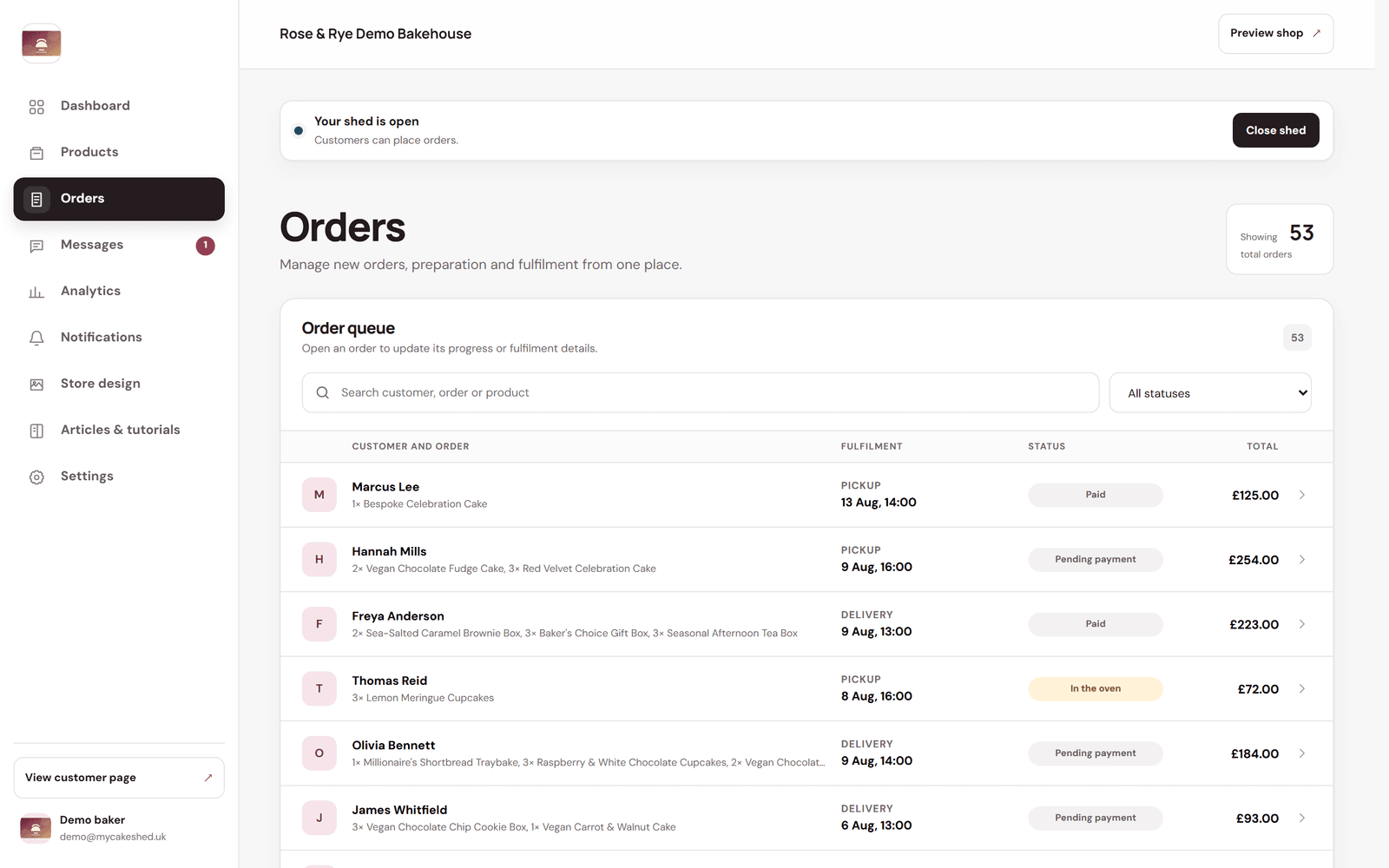
Read the queue
- Each row shows the customer, what they ordered, whether it's pickup or delivery, the date and time, a status pill and the total.
- Use the search box to find an order by customer, order number or product, and the "All statuses" filter to focus on, say, everything that's paid but not started.
Open an order and move it forward
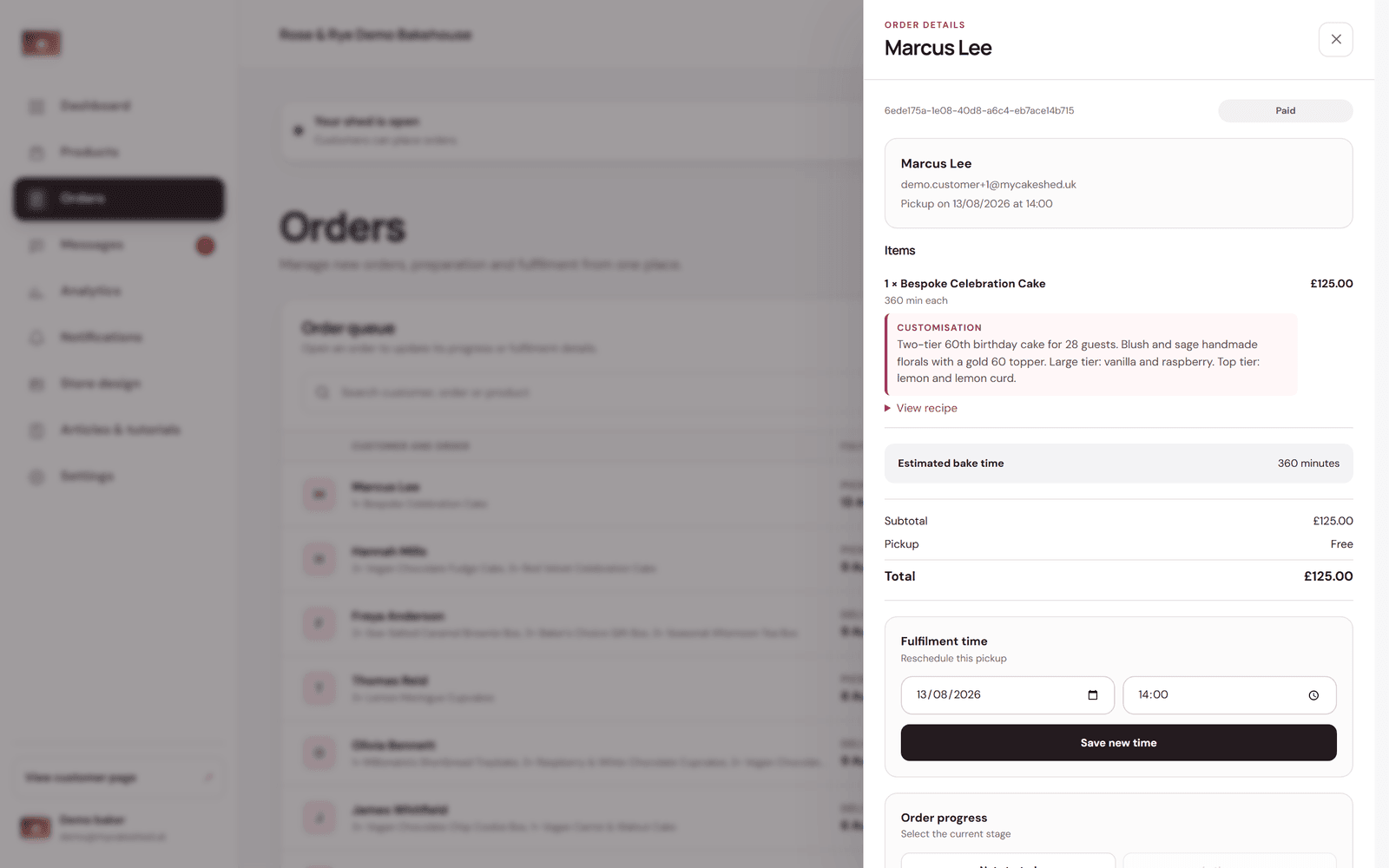
- Click any order to open its full details.
- Check the items, any "Customisation" note from the customer, and the bake time. Use "View recipe" for your own notes.
- Under "Order progress", move the order through each stage as you work — from paid, to in the oven, to complete, to ready for collection or out for delivery, and finally collected or fulfilled.
- Need to change the slot? Use "Fulfilment time" to reschedule the pickup or delivery, then "Save new time".
Each time you move an order forward, MyCakeShed can email the customer automatically — so keeping your queue tidy also keeps your customers informed (see “Keep customers updated without lifting a finger”).
Update statuses as you actually work rather than all at once at the end. It keeps your own list honest and gives customers accurate, real-time progress.