
Never miss an order with notifications
Notifications keep every new order, payment and account alert in one place. Here's how to use them and keep them under control.
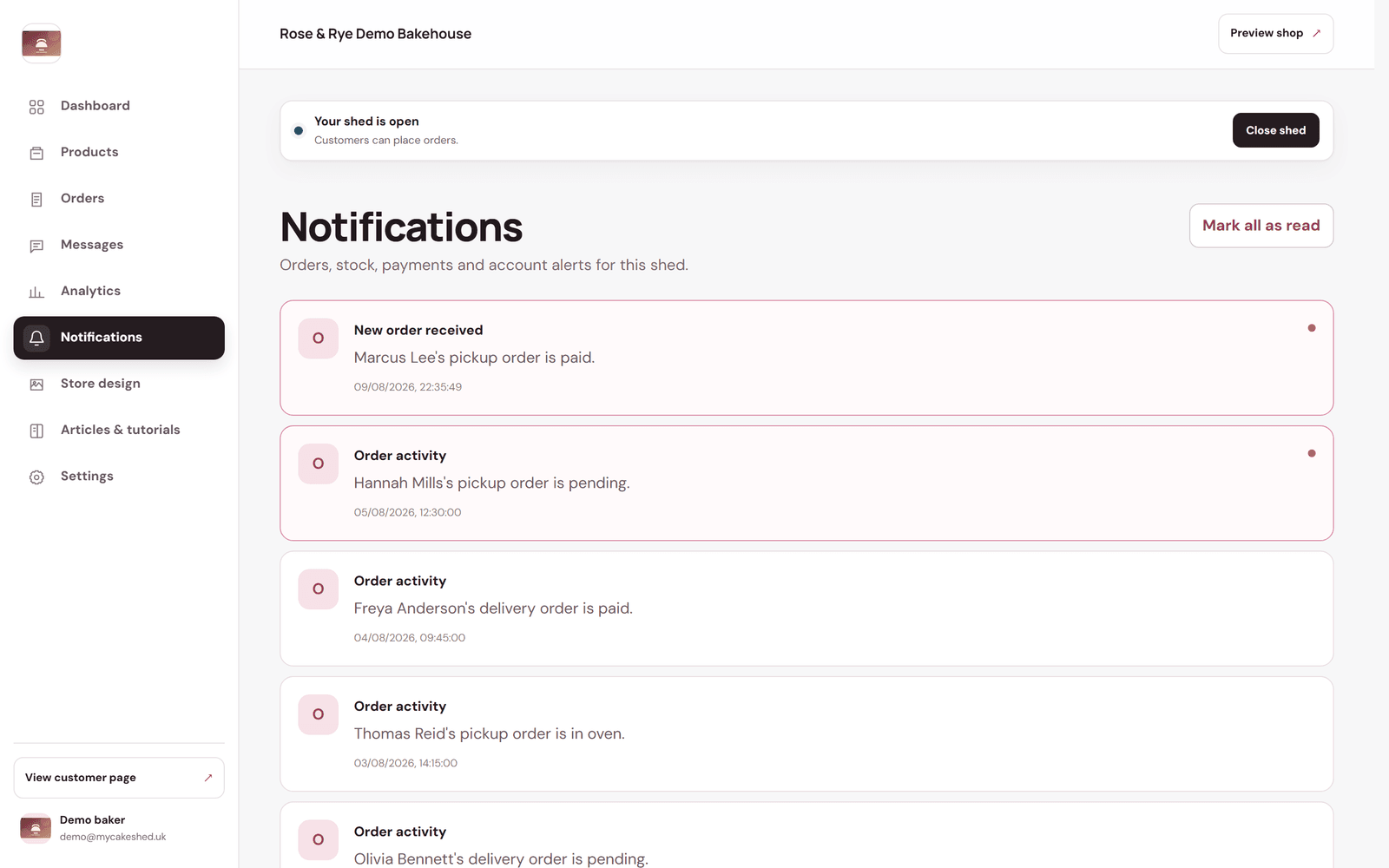
2 min readUpdated August 2026The Notifications screen gathers every alert for your shed — new orders, order activity, payments and account notices — so nothing slips past while you're busy baking.
Stay on top of them
- Newest alerts appear at the top, with unread ones highlighted.
- Tap an alert to jump straight to the order or item it's about.
- Use "Mark all as read" to clear the highlights once you're caught up.
Make sure your notification email under Settings is one you actually check — it's how order alerts reach you when you're away from the dashboard.