
Run deals and bundles
Deals nudge customers towards bigger orders and give you a reason to post. Here's how to create one and keep it under control.
4 min readUpdated August 2026A well-judged deal — a midweek pairing, a celebration bundle, a seasonal offer — gives customers a reason to spend a little more and gives you something fresh to share. Deals live alongside your menu, under Products.
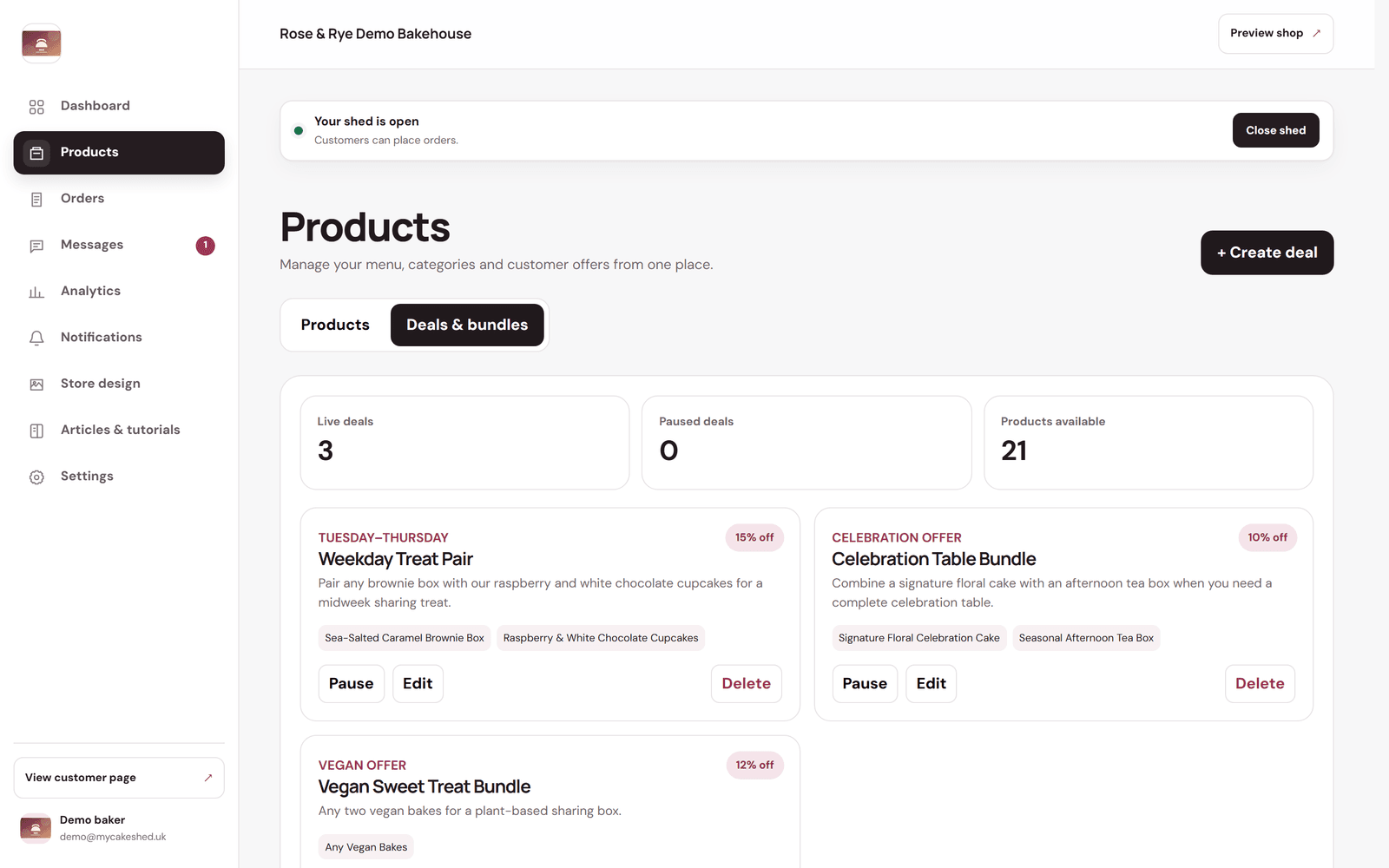
Create a deal
- Open Products, then switch to the “Deals & bundles” tab.
- Click "+ Create deal".
- Give it a name and a short badge (for example “Tuesday–Thursday” or “Celebration offer”).
- Set the discount as a percentage off.
- Choose what the deal applies to — specific products, or a whole category so any item from it qualifies.
Keep your offers tidy
- The three cards at the top show how many deals are live, how many are paused and how many products are available.
- Use "Pause" to take a deal off your shop without deleting it — handy for offers you rerun each season.
- "Edit" changes the discount, name or products; "Delete" removes it for good.
Keep deals specific and time-limited. A short "Tuesday–Thursday" pairing feels like a genuine offer; a permanent discount on everything just becomes your normal price.